
Angular Responsive Web Design: A Practical Guide
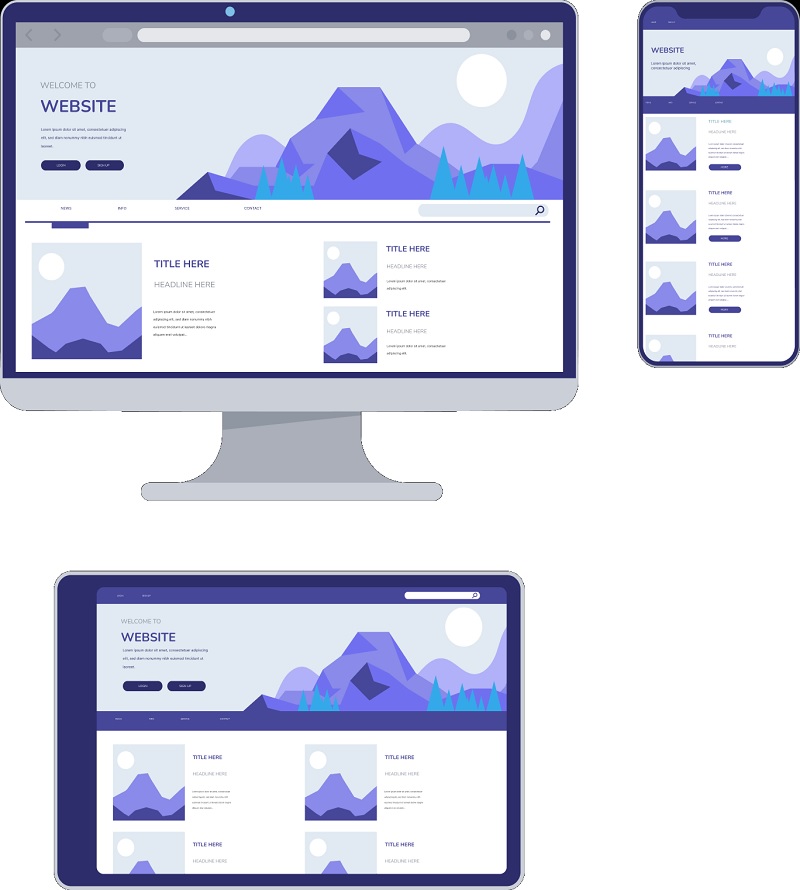
Responsive web design helps a website adapt to different screen sizes, from small phones to large desktop monitors. In an Angular application, the most reliable approach is to combine responsive CSS with semantic HTML and use Angular only when a layout needs to respond to more than visual changes.
This guide covers the core techniques for building responsive Angular interfaces, including flexible layouts, media queries, responsive images, accessibility, and testing.
Start with a Mobile-First Layout
A mobile-first design begins with a layout that works on narrow screens, then adds enhancements for wider screens. This keeps the interface focused and can make styles easier to maintain.
For example, a simple card layout can display as one column on phones and expand to multiple columns as space becomes available:
.card-grid {


  display: grid;


  grid-template-columns: 1fr;


  gap: 1rem;


}


@media (min-width: 40rem) {


  .card-grid {


    grid-template-columns: repeat(2, minmax(0, 1fr));


  }


}


@media (min-width: 64rem) {


  .card-grid {


    grid-template-columns: repeat(3, minmax(0, 1fr));


  }


}
The exact breakpoints should be based on where the content needs more room—not on a particular list of device models.
Use CSS for Presentation
Responsive behavior is usually a presentation concern, so CSS should handle it whenever possible. Angular templates can remain consistent while CSS changes the layout according to the available space.
CSS Grid and Flexbox are useful for common responsive patterns:
- CSS Grid works well for page sections, card collections, and other two-dimensional layouts.
- Flexbox is useful for arranging items in a row or column, such as navigation links or form controls.
- CSS media queries let styles change at specific viewport widths or in response to other device features.
For instance, a navigation bar can wrap on smaller screens without requiring Angular logic:
.site-nav {


  display: flex;


  flex-wrap: wrap;


  gap: 0.75rem 1.25rem;


}


.site-nav a {


  padding: 0.5rem;


}
Build Flexible Components
Responsive components should work in more than one context. Avoid hard-coding widths that only fit a single screen. Prefer flexible sizing, sensible maximum widths, and spacing that can adapt.
.page-content {


  width: min(100% - 2rem, 72rem);


  margin-inline: auto;


}


.profile-panel {


  display: flex;


  flex-direction: column;


  gap: 1rem;


}


@media (min-width: 48rem) {


  .profile-panel {


    flex-direction: row;


    align-items: center;


  }


}
Angular component styles are scoped by default, which can help keep styles organized. Shared layout rules can live in global styles, while styles specific to a component can stay in that component’s stylesheet.
Use Angular Responsively When Behavior Changes
CSS is the right tool when only the appearance changes. Angular may be useful when the actual behavior or content needs to differ based on the available screen size—for example, when a compact navigation menu opens and closes.
For responsive behavior based on viewport size, Angular CDK’s BreakpointObserver can observe media queries. First, install the CDK package if it is not already part of the project:
npm install @angular/cdkThen use BreakpointObserver in a component or service:
import { Component, inject } from '@angular/core';


import { BreakpointObserver } from '@angular/cdk/layout';


import { map } from 'rxjs';


@Component({


  selector: 'app-navigation',


  template: `


    <button


      type="button"


      [attr.aria-expanded]="menuOpen"


      (click)="menuOpen = !menuOpen">


      Menu


    </button>


    <nav [class.is-open]="menuOpen">


      <a href="/">Home</a>


      <a href="/about">About</a>


      <a href="/contact">Contact</a>


    </nav>


  `


})


export class NavigationComponent {


  private breakpointObserver = inject(BreakpointObserver);


  isWide$ = this.breakpointObserver


    .observe('(min-width: 48rem)')


    .pipe(map(result => result.matches));


  menuOpen = false;


}
In this example, the observable reports whether the viewport matches the media query. Use this kind of JavaScript-driven response only when the application’s behavior needs it; CSS alone is simpler for visual changes.
Make Images and Media Adapt
Images can cause horizontal scrolling if they exceed their containers. A common baseline rule is:
img,


video {


  max-width: 100%;


  height: auto;


}
For different image files at different screen sizes, use the HTML <picture> element or the srcset and sizes attributes. This can reduce downloads on smaller devices and provide appropriately sized images.
<img


  src="images/team-800.jpg"


  srcset="images/team-400.jpg 400w, images/team-800.jpg 800w"


  sizes="(max-width: 40rem) 100vw, 50vw"


  alt="The product team working together">
Keep Accessibility in Mind
Responsive layouts should remain usable with a keyboard, screen reader, or zoomed-in display. A few practical guidelines can help:
- Use semantic elements such as
<nav>,<main>, and<button>. - Make interactive controls large enough to tap comfortably.
- Ensure that text and controls have sufficient color contrast.
- Do not rely on screen size alone to hide important content or functionality.
- For expandable menus, communicate their state with attributes such as
aria-expanded. - Check that the page remains usable when text is enlarged or the browser is zoomed.
Test Across Viewports
Testing only at one desktop width can hide layout problems. Check pages at narrow, medium, and wide widths, and resize the browser to see how the layout behaves between common breakpoints.
Angular projects can also use unit and end-to-end tests to verify component behavior. For visual layout, browser developer tools are useful for checking viewport sizes, touch targets, overflow, and responsive images. Test on real devices when possible, especially for touch interactions and mobile navigation.
Common Mistakes to Avoid
- Using fixed widths everywhere: Fixed dimensions can make content overflow on smaller screens.
- Adding JavaScript for every layout change: CSS is usually simpler and more efficient for presentation.
- Choosing breakpoints based only on device labels: Let the content determine when a layout needs to change.
- Hiding content without considering users: Important information should remain available across screen sizes.
- Forgetting long content: Test headings, links, labels, and translations that may wrap onto additional lines.
Conclusion
Responsive web design in Angular starts with the same fundamentals as responsive design in any modern web application: flexible layouts, mobile-first CSS, accessible markup, and careful testing. Use Angular features such as BreakpointObserver when screen size genuinely affects application behavior, and let CSS handle visual adaptation whenever it can.
Angular Responsive Web Design: 6 Frequently Asked Questions
- How to make Angular material UI responsive?
- Is Angular a responsive framework?
- Is Angular mobile Friendly?
- Is Angular web responsive?
- How to achieve responsive web design in Angular?
- What are the 3 basic things required for responsive web design?
How to make Angular material UI responsive?
To make an Angular Material UI responsive, combine Angular Material components with CSS media queries, Flexbox, or CSS Grid so layouts adjust naturally to available screen space. Use responsive containers and flexible widths instead of fixed pixel sizes, and change column counts, spacing, or alignment at content-driven breakpoints. Angular Material’s layout-related tools, such as the Angular CDK’s `BreakpointObserver`, can help when the interface needs to change behavior—not just appearance—on smaller screens. Also check that tables, dialogs, navigation, and form controls remain usable on touch devices, and test the finished UI at multiple viewport sizes.
Is Angular a responsive framework?
Angular is not a responsive framework by itself; it is a framework for building web applications. It includes tools for creating components and managing application behavior, while responsiveness is typically handled with CSS techniques such as media queries, Flexbox, and Grid. Angular CDK’s BreakpointObserver can help when application behavior needs to change at different screen sizes, but a responsive layout still depends on thoughtful design, accessible markup, and testing across devices.
Is Angular mobile Friendly?
Yes, Angular is mobile-friendly. It supports responsive web applications, but it does not automatically make a site adapt to smaller screens. Use CSS media queries, Flexbox or Grid, and responsive images to adjust layouts for phones and tablets. Angular features such as the Angular CDK’s `BreakpointObserver` can help when the app’s behavior—not just its appearance—needs to change across screen sizes. The result depends on how the application is designed and tested.
Is Angular web responsive?
Yes, Angular web applications can be responsive, but Angular does not make a site responsive automatically. Responsiveness comes from the HTML and CSS you use, such as flexible layouts, CSS Grid or Flexbox, and media queries. Angular can also help manage behavior that changes across screen sizes, but most visual adjustments are best handled with CSS.
How to achieve responsive web design in Angular?
To achieve responsive web design in Angular, build flexible layouts with CSS Grid or Flexbox, start with mobile-friendly styles, and use media queries to adjust the design at content-driven breakpoints. Make images fluid with rules such as max-width: 100%, and use semantic, accessible HTML so controls work well across devices. Handle visual changes in CSS whenever possible; for behavior that genuinely needs to change with screen size, Angular CDK’s BreakpointObserver can help. Test the application at a range of viewport sizes and on real devices to catch layout and usability issues.
What are the 3 basic things required for responsive web design?
The three basic requirements for responsive web design are a flexible grid-based layout, flexible images and media, and CSS media queries. Together, they let a page’s content resize and rearrange to fit different screen widths. In an Angular app, these adaptations are usually handled with CSS, while Angular can manage behavior that changes across layouts, such as opening a mobile navigation menu.